
Mobile Platform Security Models
🔑 Key Takeaways & Definition
- ● Definition: Mobile Platform Security refers to the comprehensive security architecture and measures integrated into mobile operating systems (like Android and iOS) to protect the device, data, and network connectivity.
- ● Core Concept: Unlike desktop OSs (Windows/Linux) which were originally open, mobile OSs are designed from the ground up with Sandboxing and Code Signing as mandatory features.
- ● The Goal: To ensure that even if a user installs a malicious app, it cannot compromise the core operating system or other apps.
Introduction to Mobile Platform Security
Mobile devices are the most personal computers we own, containing GPS history, health data, and banking credentials. To protect this, both Google (Android) and Apple (iOS) employ a "Defense in Depth" strategy. They assume that apps are untrustworthy and limit what they can do through strict architectural controls.
Why Mobile Security is Critical:
Mobile Threat Landscape (2026):
- 6.8 billion smartphones worldwide (83% of population)
- Mobile malware: 2.3 million new samples (2025)
- Average user: 80+ apps installed
- Data value: Banking, health, location (24/7 tracking)
Attack Vectors:
- ● Malicious apps: Fake apps in stores (repackaged legitimate apps)
- ● Phishing: SMS/email targeting mobile users
- ● Network attacks: Fake Wi-Fi hotspots (man-in-the-middle)
- ● Physical theft: Device contains entire digital life
- ● Zero-day exploits: NSO Group Pegasus (state-sponsored)
Evolution of Mobile Security:
Early Days (2007-2010):
- Minimal security (apps had full access)
- No app signing required
- User = admin (root access)
Modern Era (2010-present):
- Mandatory sandboxing
- Permission models
- Hardware security (Secure Enclave)
- Encrypted storage (default)
Mobile Security Architecture
Both platforms share a similar high-level architecture, though the implementation differs.
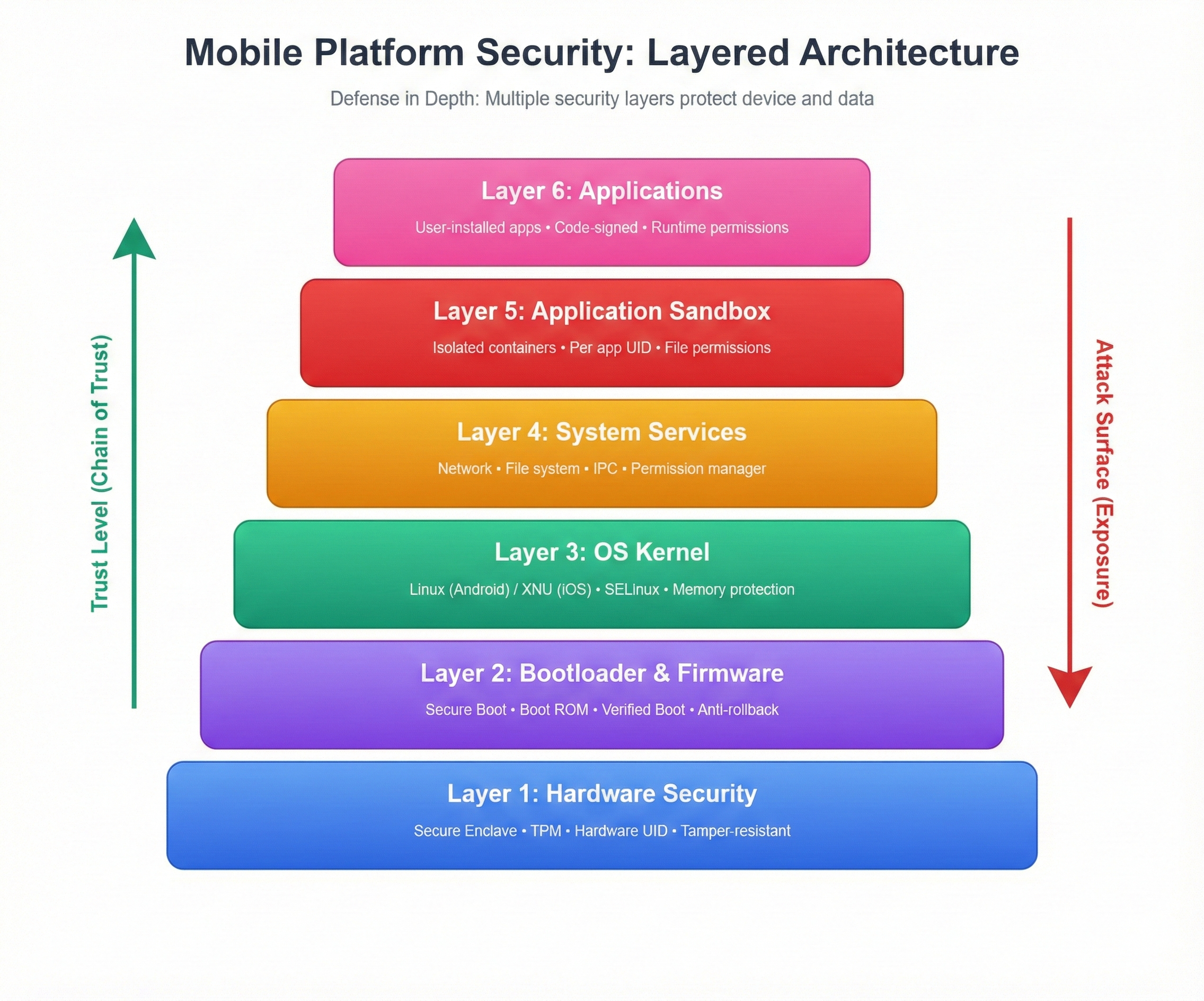
Layered Defense Architecture:
Layer 1: Hardware Security (Foundation) ðŸ”
- ● Secure Element / Secure Enclave / TPM
- Stores: Encryption keys, biometric data, certificates
- Physically isolated from main CPU
- Tamper-resistant (attempts to extract data destroys chip)
Layer 2: Bootloader & Firmware 🔧
- ● Secure Boot: Verifies OS integrity before loading
- Immutable code (burned into ROM)
- Chain of trust (each stage verifies next)
Layer 3: Operating System Kernel 🧠
- Modified Linux (Android) / XNU (iOS)
- Memory protection (apps can't access kernel memory)
- Process isolation
- Security frameworks (SELinux, Sandbox profiles)
Layer 4: System Services ⚙️
- Core OS functions: Network, file system, IPC
- Privileged access (apps request via APIs)
- Centralized permission management
Layer 5: Application Sandbox 📦
- Where apps live (isolated containers)
- Each app = separate user (Linux UID model)
- Cannot access other apps' data
- Limited system resource access
Layer 6: Applications 📱
- User-installed apps
- Must request permissions
- Code-signed (verified authenticity)
- Monitored by OS (runtime protections)
Android Security Model
Android is built on top of the Linux kernel but adds several unique security layers.
A. Application Sandbox 📦
Definition:
Android assigns a unique User ID (UID) to every Android app.
Mechanism:
In Linux, User A cannot read User B's files. Android tricks the kernel into thinking every app is a different "user." Therefore, WhatsApp (User 101) cannot read the files of Facebook (User 102) unless explicitly shared.
How It Works:
Linux User Model:
Traditional Linux:
User "alice" (UID 1000) → /home/alice/ (private files)
User "bob" (UID 1001) → /home/bob/ (private files)
alice cannot read bob's files (kernel enforces)
Android Application Model:
App "WhatsApp" (UID 10101) → /data/data/com.whatsapp/ (private files)
App "Facebook" (UID 10102) → /data/data/com.facebook/ (private files)
WhatsApp cannot read Facebook's files (kernel enforces)
Directory Structure:
/data/data/
  ├── com.whatsapp/ (UID: 10101, perms: rwx------)
  │   ├── databases/ (SQLite databases)
  │   ├── shared_prefs/ (settings)
  │   └── files/ (app data)
  ├── com.facebook/ (UID: 10102, perms: rwx------)
  │   └── ...
  └── com.banking.app/ (UID: 10103, perms: rwx------)
Shared Storage:
- External storage (/sdcard/) = world-readable (no sandbox)
- Scoped storage (Android 10+) = sandboxed external storage
Inter-App Communication:
- ● Intents: Controlled messages between apps
- ● Content Providers: Shared databases (with permissions)
- ● Explicit sharing: User selects file to share
B. Permissions Model 🔑
Definition:
A mechanism that requests user consent for sensitive actions.
Types:
1. Install-Time Permissions (Deprecated):
Old Model (Android < 6.0):
Install app → User sees ALL permissions upfront
Problem: Users ignore wall of permissions, accept blindly
2. Runtime Permissions (Modern Model):
Modern Model (Android 6.0+):
Install app → No permissions granted
User clicks camera button → App requests: "Allow camera access?"
User: Allow / Deny
Benefit: Context-aware (user knows WHY app needs permission)
Permission Categories:
Normal Permissions (Automatic):
- Internet access
- Wi-Fi state
- Set alarm
- No user prompt (low risk)
Dangerous Permissions (User Approval):
- Camera, Microphone
- Location (fine, coarse)
- Contacts, SMS, Call logs
- Storage (read/write files)
- User must explicitly grant
Special Permissions (Settings Page):
- Draw over other apps (overlay)
- Accessibility services
- Device admin rights
- User navigates to Settings to grant (high risk)
Permission Groups:
Location Group:
  - ACCESS_FINE_LOCATION (GPS)
  - ACCESS_COARSE_LOCATION (network-based)
Grant one = grant all in group
One-Time Permissions (Android 11+):
User grants permission → Valid for single session
App closed → Permission revoked
Next time → Ask again
Benefit: Limits persistent tracking
C. Application Signing âœ️
Definition:
All apps must be digitally signed by a developer's private key.
Goal:
Ensures that app updates come from the same author. If a hacker tries to update your legit "Instagram" with a fake version, the signature won't match, and the update fails.
How It Works:
Developer Process:
1. Developer creates key pair (public + private key)
2. Builds APK (app package)
3. Signs APK with private key
   - Creates digital signature (hash of APK encrypted with private key)
4. Uploads to Play Store
User Installation:
1. User downloads APK
2. Android verifies signature:
   - Decrypt signature with public key (embedded in APK)
   - Hash the APK
   - Compare: If hashes match → Authentic ✓
3. Store public key (for future updates)
Update Verification:
1. User receives update
2. Android checks:
   - New APK signature matches stored public key?
   - If YES → Allow update
   - If NO → Block (different developer = potential malware)
Key Storage:
- Developer responsibility: Keep private key secure
- Lose key = can't update app (must publish new app with new package name)
Play Store Additional Checks:
- Google scans APK for malware (Play Protect)
- Reviews app content (policy violations)
- Monitors app behavior post-install
D. SELinux (Security-Enhanced Linux) 🔒
Definition:
A mandatory access control (MAC) system built into the kernel.
Mechanism:
It acts as a "jailkeeper" that enforces strict policies. Even if a hacker gets "Root" access through a bug, SELinux can block them from writing to the system partition.
How It Works:
Traditional Linux (DAC - Discretionary Access Control):
If you're root (UID 0) → You can do ANYTHING
Problem: Single privilege escalation bug = total compromise
SELinux (MAC - Mandatory Access Control):
Even if you're root → SELinux policy STILL restricts you
Example: Root can't modify /system/ (system partition policy: read-only)
SELinux Modes:
- ● Disabled: SELinux off (insecure, old devices)
- ● Permissive: Log violations but don't enforce (used for debugging policies)
- ● Enforcing (Default): Block violations (production mode)
Policy Example:
Domain: untrusted_app (third-party apps)
Allow: Read own files (/data/data/com.app/)
Allow: Access internet (via system service)
Deny: Write to /system/ (system partition)
Deny: Access other apps' files
Deny: Execute shell commands with root
Context Labels:
File: /data/data/com.whatsapp/databases/msgstore.db
SELinux Context: u:object_r:app_data_file:s0:c512,c768
Translation: "App data file, belongs to app with category c512,c768"
Only app with matching category can access
Benefits:
- ● Limits exploit impact: Root exploit still can't modify system
- ● Defense in depth: Even kernel bugs contained
- ● Zero-day protection: Unknown vulnerabilities mitigated
Android-Specific:
- Per-app SELinux categories: Each app gets unique label
- System services protected: Camera, GPS services have strict policies
- Kernel hardening: Prevents privilege escalation
iOS Security Model
Apple's model is more "closed" (Walled Garden), giving it tighter control over security.
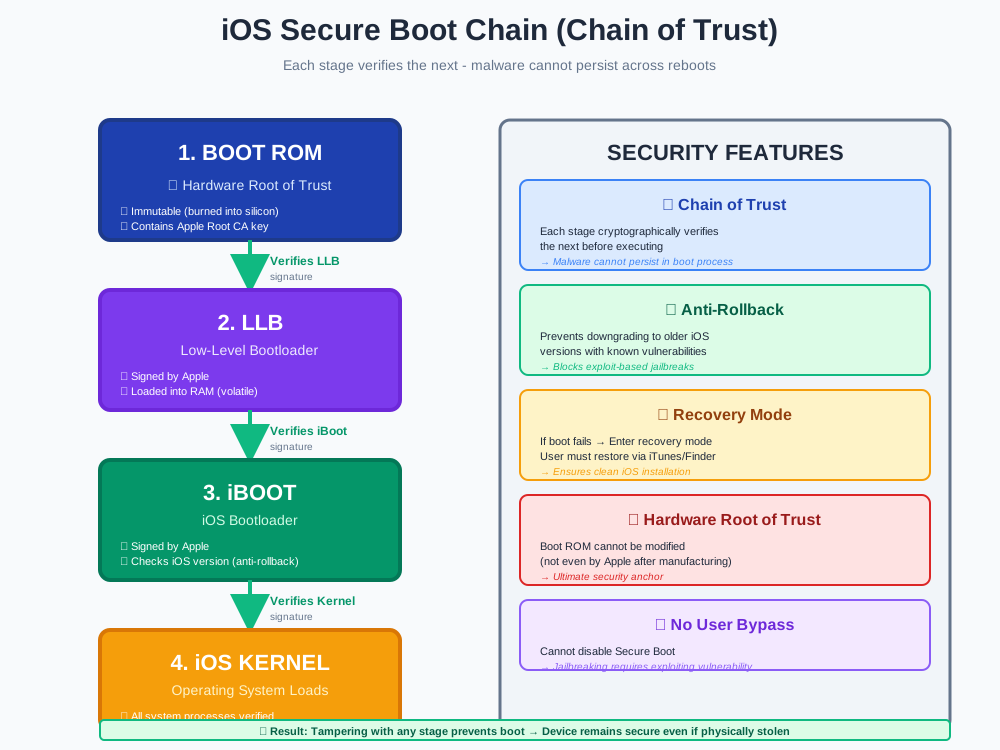
A. Secure Boot Chain ⛓️
Definition:
When an iPhone turns on, the processor checks a digital signature in the Boot ROM (Hardware). If it's valid, it loads the next step.
Goal:
Ensures the OS hasn't been tampered with. If you try to load a hacked iOS version, the phone refuses to boot.
Boot Process (Chain of Trust):
Step 1: Boot ROM (Immutable) ðŸ”
Hardware-level code (burned into silicon at factory)
Cannot be modified (even by Apple)
Contains: Apple Root CA public key
Action: Verify Low-Level Bootloader (LLB) signature
If invalid → STOP (brick device)
Step 2: Low-Level Bootloader (LLB) 🔧
Signed by Apple
Loaded into RAM (volatile, disappears on reboot)
Action: Verify iBoot signature
If invalid → STOP
Step 3: iBoot 🚀
Signed by Apple
Action: Verify iOS Kernel signature
If invalid → STOP (recovery mode)
Step 4: iOS Kernel 🧠
Signed by Apple
Loads iOS operating system
Verifies: All system processes, drivers, frameworks
If invalid → Kernel panic
Step 5: System Processes ⚙️
Each system daemon (network, Bluetooth, etc.) verified
Code signature checked before execution
Invalid signature → Process killed
Security Benefits:
Prevents Bootkit Malware:
Traditional PC: BIOS malware persists across reboots
iOS: Boot ROM verifies everything → Malware can't persist
Anti-Downgrade Protection:
iOS includes "nonce" (unique number per version)
Boot ROM checks: Is this iOS version allowed?
Old iOS (with known vulnerabilities) → Rejected
Prevents: Rolling back to exploitable version
Recovery Mode:
If boot fails → iPhone enters recovery mode
User must restore via iTunes/Finder
Ensures: Clean iOS installation
B. App Sandbox 📦
Definition:
Similar to Android, but stricter. Third-party apps are restricted from accessing files stored by other apps or making changes to the device settings.
iOS Sandbox Model:
Seatbelt Profiles:
macOS technology adapted for iOS
Kernel extension enforces access rules
Each app runs in containerized environment
App Container:
/var/mobile/Containers/
  ├── Bundle/ (app executable, read-only)
  ├── Data/ (app data, read-write)
  │   ├── Documents/ (user files)
  │   ├── Library/ (app data)
  │   └── tmp/ (temporary files)
  └── Shared/ (inter-app shared data, controlled)
Restrictions:
Cannot Access:
- Other apps' containers
- System files (outside sandbox)
- Low-level hardware (direct access)
- Network sockets (raw packets)
Must Request:
- Camera, microphone, location
- Photos library
- Contacts, calendar
- Bluetooth, local network
Inter-App Communication:
URL Schemes:
App A: Opens "whatsapp://send?text=Hello"
iOS: Asks user "Open in WhatsApp?"
Benefit: User controls data sharing
App Extensions:
Share extension (share photo to Instagram)
Keyboard extension (third-party keyboard)
Today widget (lock screen widget)
Runs in separate process (additional sandbox)
Universal Clipboard:
Copy on iPhone → Paste on Mac
Encrypted via iCloud Keychain
Only works for same Apple ID
C. Code Signing âœ️
Definition:
Every single app and process running on iOS must be signed by an Apple-issued certificate.
Implication:
You cannot install an app unless Apple has reviewed and approved it (unless you Jailbreak).
Certificate Types:
1. App Store Distribution Certificate:
Apple reviews app → Issues certificate → App signed
Certificate valid for: 1 year (renewable)
App submission: Automated + manual review
2. Enterprise Certificate:
For companies (internal app distribution)
No App Store review (trust-based)
Problem: Abused by malware distributors (Facebook, Google caught)
Apple response: Revoke certificates (kills all apps)
3. Developer Certificate:
For testing (7-day validity)
Requires: Paid Apple Developer account ($99/year)
Free tier: 7-day limit (re-sign weekly)
Code Signing Process:
1. Developer builds app (Xcode)
2. Xcode signs app with certificate
   - Embeds: Certificate, entitlements, provisioning profile
3. User installs app
4. iOS verifies:
   - Certificate valid? (not expired, not revoked)
   - Signature matches? (app not modified)
   - Entitlements authorized? (allowed capabilities)
5. If all pass → Install
Entitlements:
Permissions declared at compile time
Examples:
  - com.apple.developer.healthkit (Health data access)
  - com.apple.security.application-groups (shared data)
Apple approves entitlements during review
Cannot be added post-approval (must resubmit)
Jailbreaking:
Exploit iOS vulnerability → Disable signature checks
Result: Install unsigned apps (from Cydia, etc.)
Risk: Malware, instability, no warranty
D. Data Protection Classes ðŸ”
Definition:
iOS encrypts files individually based on when they need to be accessed.
File-Based Encryption:
Every file encrypted with unique key
Key wrapped by class key
Class key wrapped by user passcode + hardware UID
Protection Classes:
1. Complete Protection (NSFileProtectionComplete):
Encrypted until: User unlocks device (enters passcode)
Key available: Only when device unlocked
Use case: Email messages, Health data
Example: Lock phone → Email app can't read messages
2. Protected Unless Open (NSFileProtectionCompleteUnlessOpen):
Encrypted until: File is opened
Key available: When device unlocked OR file already open
Use case: Downloading large file (continues in background)
Example: Start download → Lock phone → Download continues
3. Protected Until First User Authentication (NSFileProtectionCompleteUntilFirstUserAuthentication):
Encrypted until: First unlock after boot
Key available: From first unlock until next reboot
Use case: Background app data, notifications
Example: Reboot phone → No notifications until unlock
4. No Protection (NSFileProtectionNone):
Encrypted: Only by hardware (not tied to passcode)
Key available: Always (even when locked)
Use case: System files (must be accessible at boot)
Risk: Forensic tools can access (if no passcode)
Key Hierarchy:
User Passcode + Hardware UID (Secure Enclave)
         ↓ (derives)
    Class Keys (per protection class)
         ↓ (encrypts)
    File Keys (per file, unique)
         ↓ (encrypts)
    File Data
Secure Enclave:
- Dedicated crypto coprocessor
- Stores: Encryption keys, biometric data (Face ID, Touch ID)
- Isolated from main CPU (own secure boot, own OS)
- Brute-force protection: 10 failed passcode attempts → wipe device
⚠️ Android vs. iOS Security (Exam Focus)
| Feature | Android | iOS |
|---|---|---|
| App Source | Open (Play Store + Sideloading allowed) | Closed (App Store Only, no sideloading*) |
| Sandboxing | Based on Linux UIDs (per-app user) | Based on "Seatbelt" Profiles (kernel extension) |
| Hardware | Fragmented (many manufacturers, chips) | Uniform (Apple Silicon, Secure Enclave standard) |
| OS Updates | Fragmented (carrier/OEM delays) | Immediate (Apple controls distribution) |
| Permissions | Runtime permissions (granular) | Runtime permissions (similar) |
| Code Signing | Developer self-signed (Play Store scans) | Apple-signed certificate (mandatory review) |
| Secure Boot | Verified Boot (varies by OEM) | Secure Boot Chain (hardware Root of Trust) |
| Encryption | File-Based Encryption (Android 7+) | File-Based Encryption (per-file protection classes) |
| Biometrics | Varies (fingerprint, face, depends on OEM) | Face ID / Touch ID (Secure Enclave, consistent) |
| Market Share | High (~70% global) = Target for malware | Lower (~30%) = Less targeted |
| Update Lifespan | 2-3 years (varies by OEM) | 5-7 years (Apple support) |
| Rooting/Jailbreak | Common (unlocked bootloaders) | Rare (requires exploit, patched quickly) |
Key Insight:
- iOS = Walled Garden (stricter control, less flexibility, arguably more secure by default)
- Android = Open Ecosystem (more freedom, requires user vigilance, security varies by device)
Mobile Malware and Threats
A. Repackaging 📦
Attack:
Hackers take a popular game (e.g., Angry Birds), inject malware, and upload it to a third-party store.
Process:
1. Download legitimate APK (Angry Birds)
2. Decompile APK (reverse engineer)
3. Inject malicious code:
   - Steal contacts → Send to attacker server
   - Display ads (adware)
   - Crypto mining in background
4. Recompile APK
5. Sign with attacker's key (different from original)
6. Upload to third-party store (not Play Store)
7. Users download "free" version → Install malware
Detection:
- Signature mismatch: Original vs repackaged
- Play Protect: Google scans for known malware
- User reviews: "This app is asking for weird permissions"
Prevention:
- ✅ Only install from official stores
- ✅ Check developer name (official "Rovio" vs fake "Rovio Games Ltd")
- ✅ Review permissions (why does game need SMS access?)
B. Overlay Attacks 🎭
Attack:
Malware detects when you open a banking app and draws a fake "Login Window" on top of the real one to steal your password.
How It Works:
1. User installs malicious app (disguised as flashlight, game, etc.)
2. App requests "Draw over other apps" permission (Android)
3. User grants (doesn't understand risk)
4. Malware monitors running apps (accessibility service abuse)
5. User opens banking app
6. Malware detects bank app launched
7. Malware displays fake login screen (identical to real one)
8. User enters credentials (thinking it's real bank app)
9. Malware captures credentials → Sends to attacker
10. Malware removes overlay → Shows real bank app (user unaware)
Real Examples:
- ● Cerberus (2020): Android banking trojan
- ● Anubis (2019): Targeted 250+ banking apps
Detection:
- Android warns: "App is displaying over other apps"
- Recent apps switcher shows overlay as separate window
Prevention:
- ✅ Revoke "draw over apps" permission for untrusted apps
- ✅ Use biometric login (fingerprint harder to overlay)
- ✅ Banking apps detect overlays (some block overlays)
iOS:
- Less common (stricter sandbox)
- Requires jailbreak for overlays
C. Rooting / Jailbreaking 🔓
Definition:
Users voluntarily removing security protections, making them vulnerable to all the above.
Rooting (Android):
Goal: Gain root (superuser) access
Process: Exploit vulnerability OR unlock bootloader
Result: Full control over device (bypass permissions, modify system)
Jailbreaking (iOS):
Goal: Bypass Apple restrictions
Process: Exploit iOS vulnerability (temporary or permanent)
Result: Install unsigned apps, system modifications
Why People Do It:
Perceived Benefits:
- Install "cracked" apps (piracy)
- Customize UI (themes, fonts)
- Remove pre-installed apps
- Access restricted features (hotspot without carrier permission)
Security Risks:
Bypassed Protections:
- ⌠No SELinux enforcement (Android)
- ⌠No sandboxing (apps can access everything)
- ⌠No secure boot (malware persists)
- ⌠No automatic updates (stuck on vulnerable version)
Malware Impact:
Unrooted device: Malware contained in sandbox
Rooted device: Malware gets root access → Total compromise
Banking Apps:
- Detect root/jailbreak → Block access (too risky)
- Examples: Chase, Bank of America refuse to run
Warranty:
- Voided (manufacturer/carrier won't support)
Recommendation:
⌠DO NOT root/jailbreak (unless you're security researcher who knows risks)
Mobile Device Management (MDM)
For enterprises, relying on the OS isn't enough. They use MDM.
Definition:
Centralized management of employee mobile devices.
Key Features:
A. Remote Wipe 🗑️
Scenario: Employee loses phone
Action: IT admin clicks "Wipe" in MDM console
Result: Device erased within minutes (when online)
Benefit: Corporate data doesn't leak
Selective Wipe:
Delete: Only corporate data (emails, docs)
Keep: Personal data (photos, contacts)
Use case: BYOD (Bring Your Own Device)
B. Enforce Policies 📋
Policy: All devices must have:
  - 6-digit passcode (minimum)
  - Encryption enabled
  - Auto-lock after 5 minutes
  - No jailbreak/root

Non-compliant device → Blocked from corporate network
C. Containerization 📦
Work Profile (Android) / Managed Apps (iOS): ┌─────────────────────────â” │ PERSONAL SIDE │ │ - WhatsApp, Games │ │ - No IT control │ └─────────────────────────┘ ┌─────────────────────────â” │ WORK SIDE │ │ - Corporate email │ │ - Salesforce, Slack │ │ - IT controls/monitors │ │ - Encrypted separately │ └─────────────────────────┘ Benefit: Work data isolated (wipe work = keep personal)
D. App Distribution 📲
Internal app store (not public Play/App Store)
IT pushes apps → Auto-install on employee devices
Use case: Custom enterprise apps (not public)
E. Monitoring ðŸ‘️
MDM can see:
  - Device location (GPS)
  - Installed apps
  - Data usage
  - Compliance status

MDM cannot see (on personal device):
  - Personal messages, photos
  - Browsing history
  - Personal app data
(Privacy laws restrict monitoring)
Popular MDM Solutions:
- Microsoft Intune
- VMware Workspace ONE
- MobileIron
- Jamf (iOS-focused)